Trove administrators can quickly access eText and eAssessment license information by selecting the SKU Consumption Report tab in the Trove administrator account.
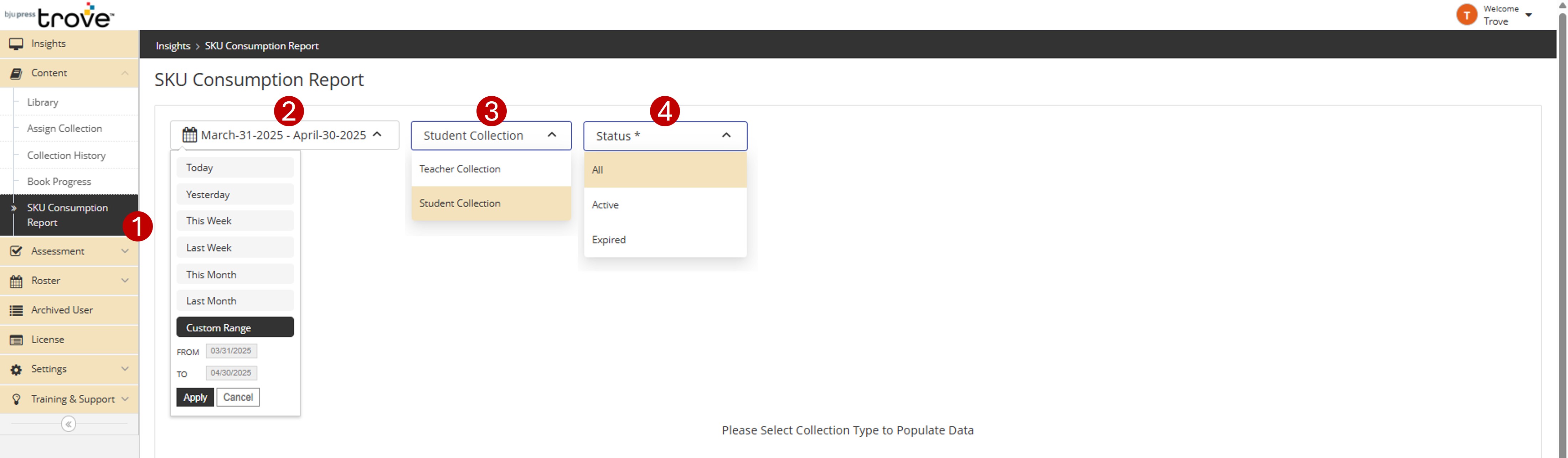
1 - The SKU Consumption report is located under the Content tab in the admin account.
2 - The date range indicates when the eText or eAssessment was purchased. Use “Custom Range” for dates further than a month in the past.
3 - Select “Student Collection” to see purchased student eTexts or eAssessments. The “Teacher Collection” will only show a large license number, which is for all the instructional resources for teachers.
4 - Select to see active, expired, or all licenses.
5 - The Collection Name column indicates the name of the eText or eAssessment.
6 - Note that all columns are sortable by clicking the arrows next to the column title.
7 - The SKU Consumption Report is exportable as an XLS file. Click the green XLS icon to initiate the download.
8 - The Assignee List gives Trove administrators insight as to when and to whom digital assets were distributed/undistributed.
.png)
When an Assignee List is selected, the Trove administrator will see each license that has been distributed/undistributed, to whom, and when. Each asset will be labeled as Assigned (currently in use), Consumed (no longer available for distribution), or Available. As a reminder, digital assets can be distributed and redistributed an unlimited number of times within 60 days of the first time the asset is distributed to a student. After the 60 days, the asset can be taken away but cannot be redistributed.
.png)